Adding a Public Notice
Once logged in, go to the the Drupal Admin toolbar and click Content > Add content > Public Notice.
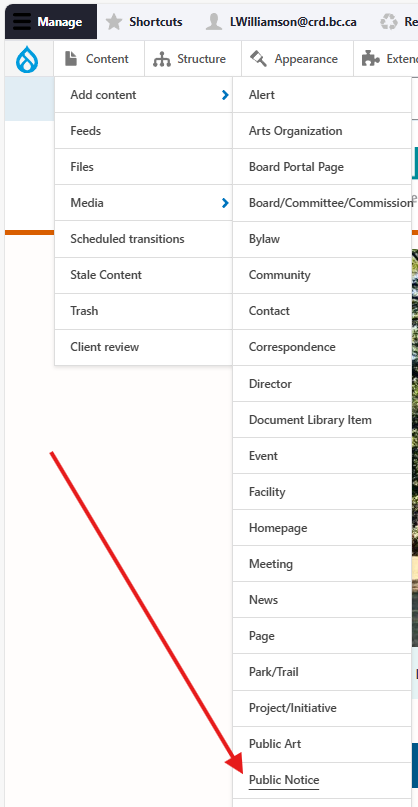
Input the following fields:
- Title: For the title of the notice. This field is required.
- Description: For the full content of the public notice.
Clicking the Public Notice information tab will display the following additional fields:
- Pinned on Homepage "Public Notices" view: Select this checkbox to pin the notice to the "Public Notices" view.
- Notice status: For setting the notice to 'active' or 'archived'. This will affect where the notice displays and for how long.
- Publication Date: For specifying the notice's publication date. This is required.
Additionally, you can click Related content to access the following fields:
- Related contact: For displaying a specific contact's information in the page sidebar. See the Contact content type page for more information.
- Related documents: For uploading a related PDF file.
- Related pages: For linking the Public Notice with any of the following content types:
- Community
- Board/Committee/Commission
- Facility
- Page
- Park/Trail
- Project/Initiative
Once you have filled out the above fields, make sure that Published is selected in the dropdown menu next to Save as, and click Save.
Editing a Public Notice
- To edit a specific node, click on Content in the Drupal toolbar.
- Filter by the Public Notice content type.
- Click to edit the specific node. Make your desired edits.
- Make sure that Published is selected in the dropdown menu, and click Save.
Sharing on the homepage
Any Public Notice content types that are set to 'Active' in the Notice status field will display in a list under the Alerts & Notice section of the homepage:
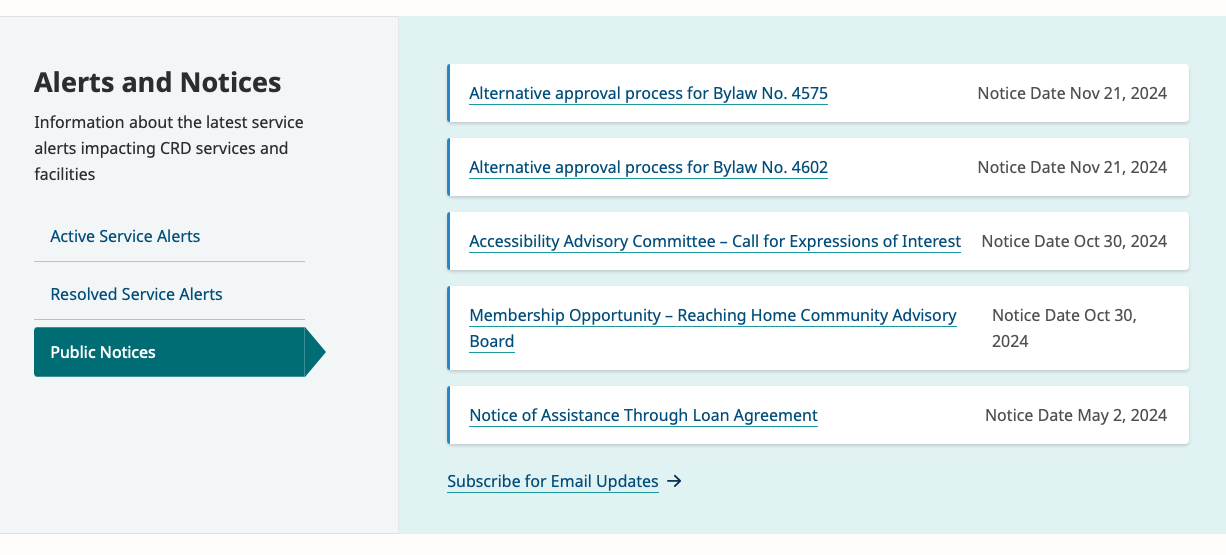
Once a notice has been set to 'Archived', it will be removed from the homepage display.
Content lifecycle
Public Notice nodes are unpublished automatically one year after the publication date.
Editorial guidelines
For instructions on when to use the Public Notice content type and how to write this type of content, see the UX style guide.
Integrations
Constant Contact
Send a Mailout to Public Notice Subscribers
Send a mailout to the Public Notice subscribers either when creating or editing a Public Notice.
- From the Admin toolbar, select Content > Add Content > Public Notice
- Or click Content
- Find or use the filter by content type Public Notice
- Click to edit the Public Notice
- Add or update Public Notice information and other changes
- Check the Send mailout to subscribers now
- Make sure the save as is set to Published
- Click Save