
Drupal uses nodes to identify webpages, so when you create a new page, it is automatically given an URL like website.com/node/123 or /node/45. As these URLs do not convey any information about the page itself, a URL alias can be created, for a nicer URL. This would allow website.com/node/123 to appear as website.com/url-alias.
Please note that you may not have access to these options, based on your user role and editing permissions.
Create an Alias While Editing a Page
- Once logged in, click on Content from the top level of the Drupal Admin toolbar.
- Find the page you are looking for and click on “Edit” from the right-hand column.
- Under the 'Advanced settings' tab near the bottom of the page, or within the right side menu, find the section “URL Alias” and expand it
- By default, Drupal will create an automatic alias. If this page is in the menu, this alias likely reflects the page's position in the menu. If this page is not in the menu, Drupal may default to /node/123.
- If you would like to manually set an alias:
- Uncheck “Generate automatic URL alias”
- Type out what you would like the alias to be, starting with a slash ( / ).
For example, to create an alias like website.com/url-alias, you would type /url-alias into the box.
- Click the “Save” button.
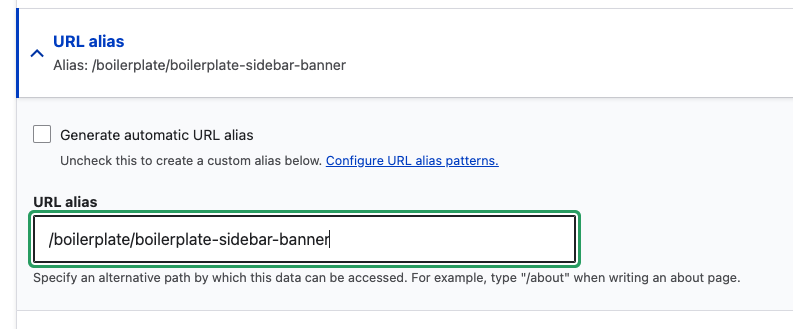
Once saved, the URL will appear as your alias.
Update an Automatic URL Alias
If you move a page, or several, within your sitemap, the automatically generated alias may no longer accurately reflect the page's position. In these cases, you'll want to refresh the automatic alias to reflect this change.
Updating a few pages
If you have just moved a page or two around in your sitemap, you can regenerate the URL alias on each page:
- Once logged in, click on Content from the top level of the Drupal Admin toolbar.
- Find the page (or pages) you have moved and click on “Edit” from the right-hand column
- Under the 'Advanced settings' tab near the bottom of the page, or within the right side menu, find the section “URL Alias” and expand it
- Uncheck “Generate automatic URL alias” and then recheck it. This will regenerate the automatic alias.
- Click the “Save” button.
Updating many pages
If you have made significant changes to your sitemap, or if you have changed the name of a high-level page in your menu, you'll likely have many pages that require their URL alias to be updated. In these cases, we recommend reaching out to Upanup. Our support team can help do a bulk regeneration of URL alias, so that you don't have to edit each affected page.
Add a new Alias
In Drupal, a single node, or page, can have multiple URL aliases. To create a new, additional alias for a page:
- Once logged in, from the Drupal Admin toolbar, navigate to Configuration > Search and metadata > URL aliases.
- Click on “Add alias”
- Input the following fields:
- System path: Enter the existing path you wish to alias. For example: /node/28 or /form/2
- URL Alias: Specify the alternative path you would like to access this node. For example: /url-alias or /about
- Click the “Save” button.
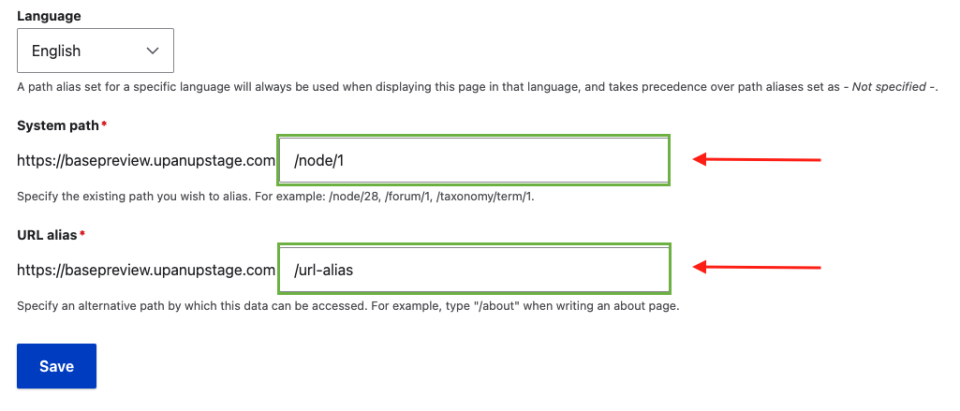
Editing an Existing URL Alias
- Once logged in, click on Configuration > Search and metadata > URL aliases from the top level of the Drupal Admin toolbar.
- Find the URL alias you are looking for and click on “Edit” from the right-hand column.
- To delete a URL alias, click the arrow next to “Edit” to open the drop-down. Click on “Delete” to delete the alias.