The Capital Region Housing Corporation (CRHC) website uses the housing properties content type for any social housing properties that are developed and managed by the CRHC.
For properties under construction, they are published as a project until construction ends and rentals are available.
This content type is only available on the Capital Regional Housing Corporation website.
Adding a Housing Property
Once logged in, from the Drupal admin toolbar, click Content > Add content > Housing Property
Input the following fields:
- Property: For the name of the property. This field is required.
- Description: For additional information about the property not already covered by the additional fields under the Housing Property information tab, e.g., a brief description of the location, types of units available and features.
Next, click the Housing Property information tab to access the following fields:
- Neighbourhood: A lookup field for showing which neighbourhood this property is located in.
- Property type: For specifying the type of property.
- Vacancies: For communicating whether there are any vacancies. Options also include "coming soon" and "waitlist". Each of these determines the order of appearance on the home page and/or properties overview page (see below).
- Population served: For communicating which specific demographics this property is built for. You may select more than one.
- Location: For inputting the latitude and longitude of the property. This will place a marker on a map, displayed on the node's detail view.
- Input the street address into this LatLong tool to find the needed values.
Click Building details to show the following fields:
- Total number of units
- Number of one-bedrooms
- Number of two-bedrooms
- Number of three-bedrooms
- Number of four-bedrooms
- Caretaker:
- Features:
To add a floor plan to the property, click to open the Floor Plans tab and then click Add floor plan.
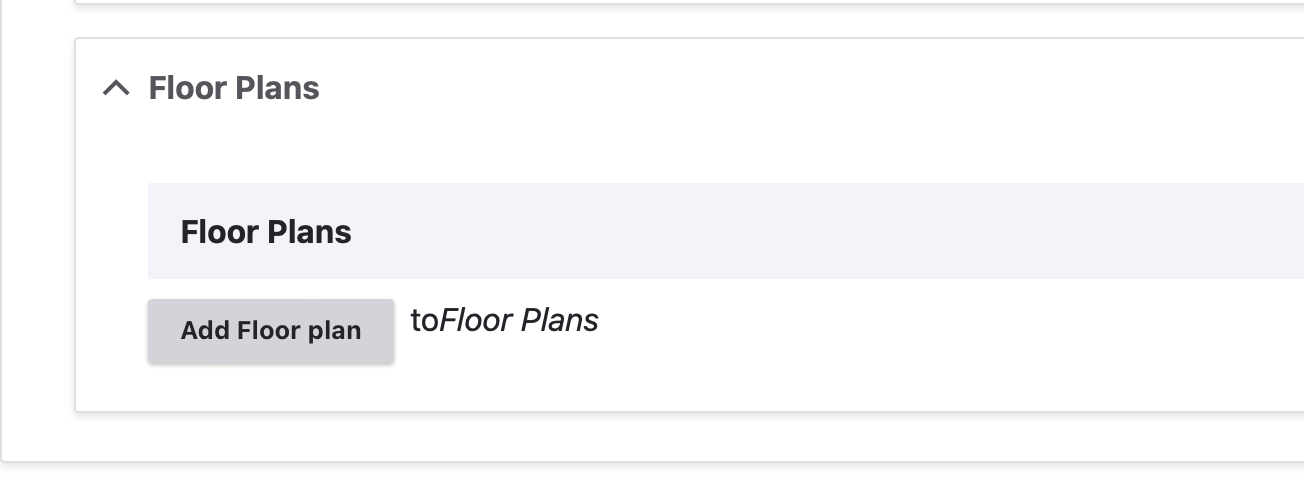
Clicking Add floor plan will display additional fields for you to add a label for the plan, its square footage, and an image if one is available.
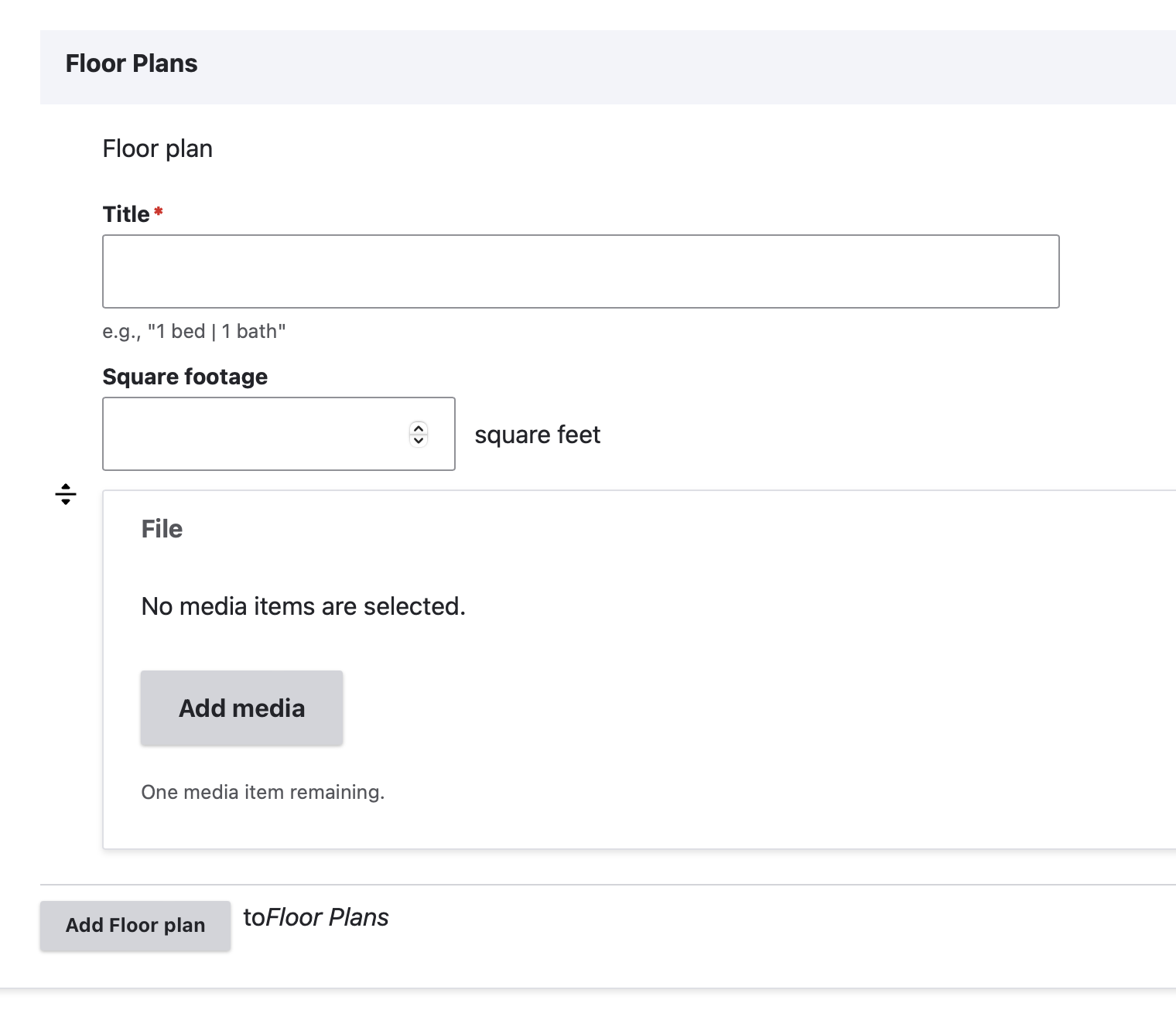
You can add more than one floor plan to a node by clicking Add floor plan again.
Adding Images
Next, click the Images tab to add images to the node. Images must have a ratio of 16:9 and a maximum width of 880 pixels to display properly.
Click Add Images. Next, click the Add media button.

Choose IntelligenceBank Embed in the menu on the left. Next, click the Open IntelligenceBank DAM browser button.

Choose the appropriate image and select the 16:9 Small (832x468) preset from the drop-down menu and click the link button below the image.

Next, review and update the Alternative text if necessary and click Select.

Next, click Insert selected.
The images will be displayed in a carousel on each housing property page. The first image in each carousel will display as the property's image in the galleries on the CRHC Homepage and the View Our Properties page on the front end.
Finally, click the Related content tab to access the following field:
- Associated contact: For displaying a specific contact's information in the page sidebar. This feature is not being used. Instead, add a content row named "What's Next".
Adding a What's Next content row
- Add a content row with the title What's Next.
- For the description, it will depend on the type of units offered. Here is an example of a description for a property that has both subsidized (link to BC Housing Registry) and non-subsidized units (contact us).
To learn more about affordable rental opportunities, contact us. If you're interested in applying for CRHC subsidized housing, please go to the BC Housing Registry.
| Icon | Link text | Page to link to |
|---|---|---|
| fa-solid fa-square-check | Apply for Housing | Applying for housing |
| fa-solid fa-list | View More properties | View our properties |
| fa-solid fa-message | Contact us | Contact us |
Editing a Housing Property
- To edit a specific node, click on Content in the Drupal toolbar.
- Filter by the Housing Property content type.
- Click to edit the specific node. Make your desired edits.
- Make sure that the checkbox next to Published is selected, and click Save.
Displaying on the CRHC Website
Housing properties will display on the CRHC Homepage under Properties, and on the CRHC View Our Properties page. Properties are organized by status in the following order: Coming Soon, Vacancy, Waitlist Available, and No Vacancy. Within each status, properties are listed alphabetically on the properties page but based on last published date on the home page.
Content lifecycle
There are no scheduled transitions in place for this content type. Content should be reviewed at least once per year to ensure its accuracy.