Adding an Event
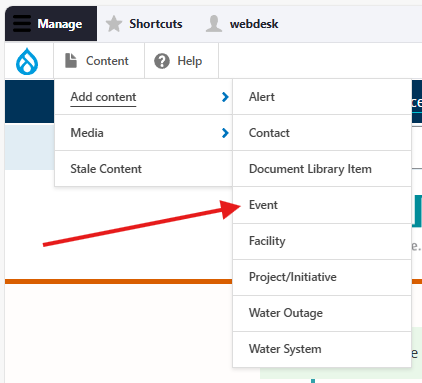
Once logged in, go to the the Drupal Admin toolbar and navigate to Content > Add content > Event.
Input the following fields:
- Title: For the name of the event. This field is required.
- Description: For providing a summary/description of what the event involves.
Clicking the Event information tab will display the following additional fields:
- Event category: For specifying the event's topic/service area, e.g., emergency preparedness, environment, First Nations.
- Event type: For specifying the type of event, e.g., an open house, webinar, etc.
- When: You can create a repeating event using the Repeats dropdown menu, or add another instance of the same event by clicking Add another item.
- Event location: For imputing the event address.
- Registration link: For providing a link to an external registration page, if applicable.
- Community: This field will display the event on the relevant community's Community node, based on the chosen input.
Click the Related content tab to access the following fields:
- Related contact: For displaying a specific contact's information in the page sidebar. See the Contact content type page for more information.
Once you have filled out the above fields, make sure that Published is selected in the dropdown menu, and click Save.
Editing an Event
- To edit a specific node, click on Content in the Drupal toolbar.
- Filter by the Event content type.
- Click to edit the specific node. Make your desired edits.
- Make sure that Published is selected in the dropdown menu, and click Save.
Content sharing
Event content type nodes that are created on a sub-site can be shared to the corporate site by checking the Share with the corporate site field under the Advanced settings tab:
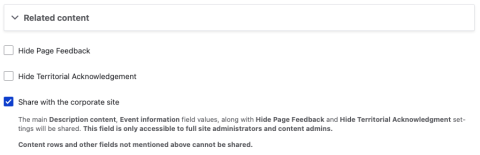
Checking this field will add the node to a feed that runs daily. This field is only accessible to full site administrators and content admins.
When a node is added to the feed, the following fields will be synced:
- Description
- Event location
- Event type
- Event category
- Start date and time (multi-value if multiple event days/times, or recurring)
- End date and time (multi-value if multiple event days/times times, or recurring)
- Registration link URL and link text
- Hide page feedback
- Hide territorial acknowledgment
If an Event node is shared from a sub-site, this will automatically check a Shared from another site field in the Advanced settings of the corresponding node on the main site:
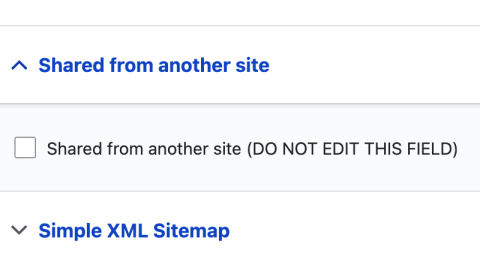
When this field is checked (done automatically by the feed importer), all fields that are part of the sharing feed will be removed and replaced with a warning message (a markup field) communicating that the node is shared from another site. This prevents users from updating content on the shared node instead of the source node. Do not edit the "shared from another site" field for any reason.

EventBrite integration
The Event content type is integrated with EventBrite through a custom module that uses feeds to synchronize any events created through the EventBrite platform.
See the EventBrite Events page for more details.
Content lifecycle
Event content type nodes are unpublished automatically one year after the date of the event has passed.
Editorial guidelines
For instructions on when to use the Event content type and how to write this type of content, see the UX style guide.