Adding a Water System
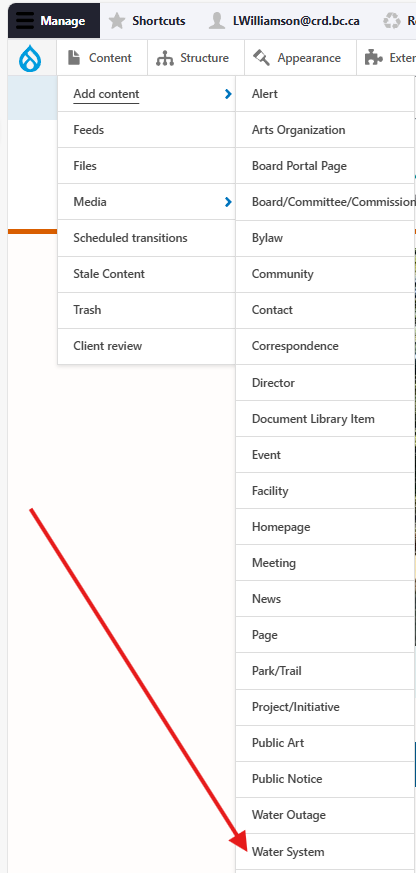
Once logged in, from the Drupal admin toolbar, click Content > Add Content > Water System.
Input the following fields:
- Title: For the name of the water system.
- Description: For any information about the water system that is not already covered by the additional fields under the Water System information tab. Note: this field's input will display on the front end after those fields.
Click the Water System information tab to input the following:
- Map: For uploading a map image file to this node.
- See the Media Library page for additional information.
- About the System: For a description/summary of the water system, e.g, its location, who it serves, when it was built, etc.
- Water Restrictions: For listing any water restrictions currently in place.
- Source Water: For information regarding where this water system's water is sourced from.
- Water Treatment Process: For a summary of how water is treated at this water system.
- Distribution System: For a summary of how water is distributed once it's been treated.
- Community: For assigning a water system to a specific community.
- Active alerts: For pinning an active alert to this water system.
Click the Related content tab to access the following fields:
- Public notices: For pinning an active public notice to this water system.
- Associated bylaws: For linking any relevant bylaws to this water system. You can search for any published Bylaw content type by name.
- Associated commissions: For linking an associated board, committee, or commission to this water system. You can search for any published Board/Committee/Commission content type by name.
- Related contact: For displaying a specific contact's information in the sidebar. See the Contact content type page for more information.
- Related links: For adding any relevant internal or external links. Links will display on the front end below a 'More Information' sub-heading.
Editing a Water System
- To edit a specific node, click on Content in the Drupal toolbar.
- Filter by the News content type.
- Click to edit the specific node. Make your desired edits.
- Make sure that Published is selected in the dropdown menu, and click Save.
Integrations
Constant Contact
Subscribe to Water Systems
Each Water System content has a corresponding contact list in Constant Contact. This contact list is automatically created when a new Water System is created.
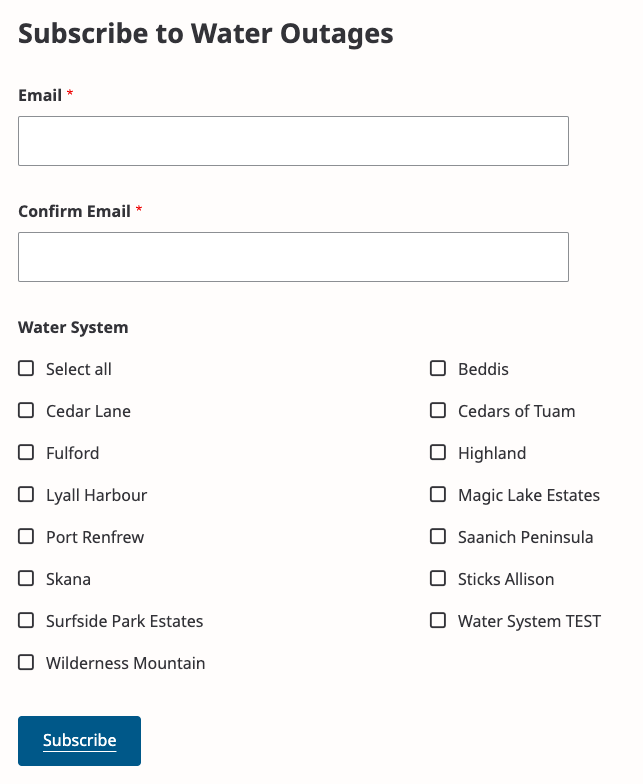
Users can subscribe to multiple Water Systems by:
- Navigate to the Outages & Maintenance page (and scroll to the bottom)
- Enter the email and confirm the email of the user
- Select water system(s) to subscribe to
- Click Subscribe
Send a Mailout to Water System Subscribers
To send a mailout to a particular Water System subscribers, it needs to be sent from the Water Outage content which has a reference to a Water Outage content.
See Water Outage content for details.
Click here for more details on the Constant Contact integration.
Content lifecycle
There are no scheduled transitions in place for this content type. Content should be reviewed at least once per year to ensure its accuracy.
Editorial guidelines
For instructions on when to use the Water System content type and how to write this type of content, see the UX style guide.