
Content rows are the building blocks for pages and other content types. They allow you to add and arrange content in various formats on a page/node. You can rearrange and add as many as you like until you have the desired layout.
Below you will find instructions for creating content rows and the types of components you can add to them.
Default fields
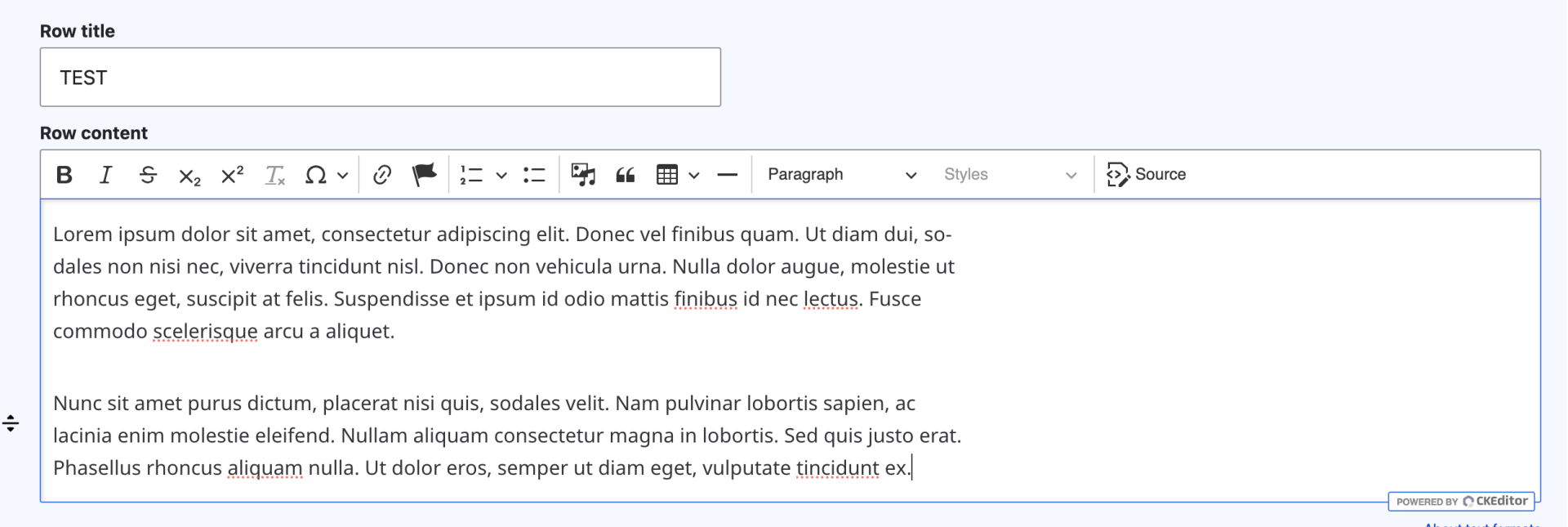
By default, a content row will always have two fields. A row title which will be styled as a H2 header for the row. The other is a field titled row content, this is where standard content is added.
How to add a content row
To add a content row to a page or node, log in to Drupal and navigate to the existing page or node you want to edit. Once in the editing interface, follow these steps:
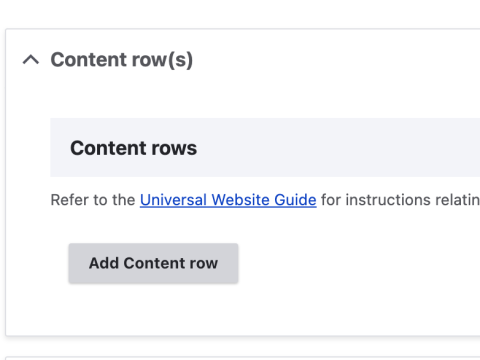
- Scroll down to the "Content row(s)" section and click "add content row'
- Enter a "Row title" if applicable. This will show as a heading 2 for the section and is optional.
- Enter "Row content" or description if needed.
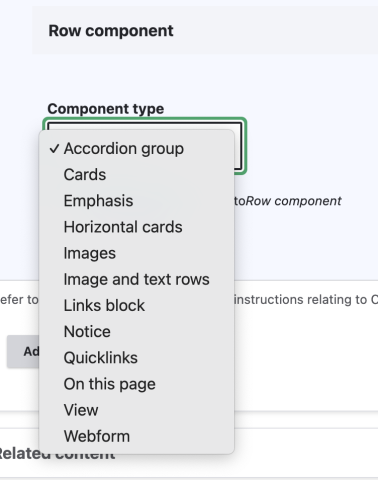
- Under the "Row component" section, select the type you would like to use for your content.
- Once you've selected your row component, fill out the fields for that component.
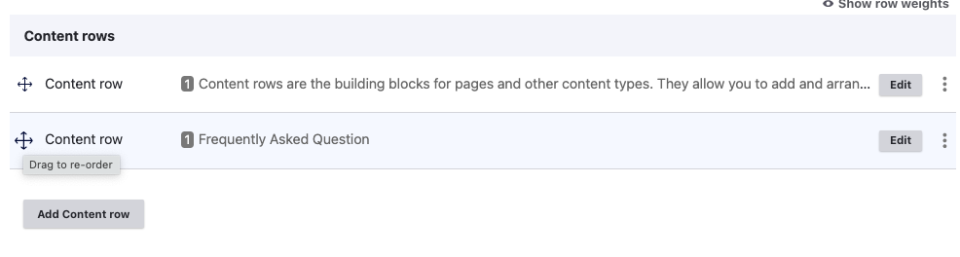
- Continue to add more content rows to your page/node as needed by clicking the "Add Content row" button. Once you've added multiple content rows, you can use the crosshairs to drag and drop rows to rearrange the order as needed. Make sure to save your page/node once you're finished editing.
Row components
A row component is a unique layout/function element that helps structure page content. When selected, the component is always added below the row title and content. Examples of common components:
On This Page
On This Page provides an overview of the content on a page, along with links that take users to each section.
Accordions
Accordions organize information by "hiding" content under individual tabs that can be opened or closed as needed.
Cards
Cards are used to emphasize links and include a description, a title, and an optional image.
Use JPG images with a ratio of 16:9, max size of 832x468px.
Horizontal Cards
Horizontal cards are like regular cards, but with the addition of a longer description.
Use JPG images with a ratio of 16:9, max size of 880 x 495px.

Horizontal Card #1
Horizontal Card #2
Emphasis
The emphasis content type helps to highlight important content. It inserts a singular eye-catching block with a quote icon that can toggle on or off.
Emphasis #1
Images
The image content row inserts an image along with an optional caption.
Use JPG images with a ratio of 16:9, max width of 880px.
Lorem ipsum dolor sit amet, consectetur adipiscing elit. Integer laoreet vestibulum mollis. Sed vitae urna sollicitudin, pulvinar diam vel, facilisis libero.
Image and Text Rows
The image and text row allows users to insert an image alongside a WYSIWYG text block.
Use JPG images with a ratio of 16:9, max width of 352px.
Lorem ipsum dolor sit amet, consectetur adipiscing elit. Integer laoreet vestibulum mollis. Sed vitae urna sollicitudin, pulvinar diam vel, facilisis libero. Pellentesque at posuere metus, in aliquam mi. Duis neque libero, pulvinar vitae imperdiet a, tempor non sapien. Cras ex felis, tempus non mi at, consequat ultricies velit. Aenean sed ante id ante eleifend tincidunt.

Notice
Notices are coloured blocks that highlight key information to users.
Notice #1
Curabitur molestie eu felis et pharetra. Etiam commodo velit vitae diam convallis, sit amet elementum elit venenatis. Curabitur vel nisi ut purus lacinia ultricies blandit at justo. Morbi ut metus vitae ante pharetra ullamcorper. Fusce interdum ex non augue ultrices porta in ut mi. Fusce molestie efficitur tincidunt.
Quick Links
Quick links are like regular links but with a fontawesome icon.
View
Views organize content by showcasing different displays such as a calendar, a grid, or a news section.
Webform
Webforms make it easy for users to fill out surveys, submit service requests, book meetings, and much more, all while staying within the website.