Adding a Contact
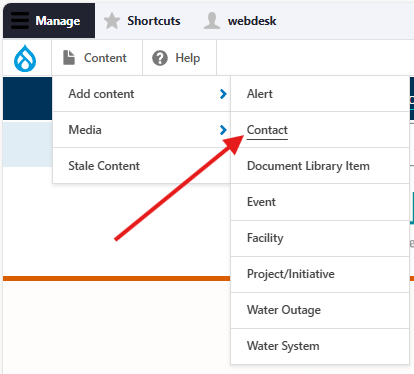
Once logged in, go to the the Drupal Admin toolbar and navigate to Content > Add content > Contact
Input the following fields:
- Title: For the job title of the contact. This is not for the name of the actual person.
- Description: For providing a short description of the contact and their role. This is optional.
Clicking the Contact information tab will display the following additional fields:
- Contact name: For the name of the contact. This is optional.
- Phone
- Toll Free Phone Number
- Online Contact Link(s)
- Department: For the contact's department. You can select more than one option.
Once you have filled out the above fields, make sure that the checkbox next to Published is selected, and click Save.
Editing a Contact
- To edit a specific node, click on Content in the Drupal toolbar.
- Filter by the Contact content type.
- Click to edit the specific node. Make your desired edits.
- Make sure that Published is selected in the dropdown menu, and click Save.
Displaying a related contact
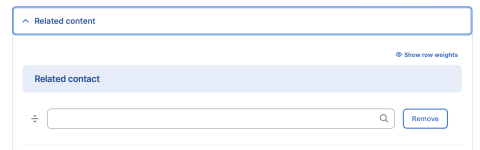
Contacts can be added to most other content types, including standard pages, using the Related contact field under the Related content tab:
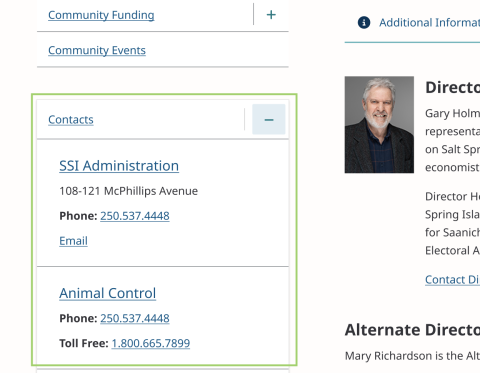
Once a contact has been added, it will display below the sidebar menu navigation on the front end:
Content lifecycle
There are no scheduled transitions in place for this content type. Content should be reviewed at least once per year to ensure its accuracy.
Editorial guidelines
For instructions on when to use the Contact content type and how to write this type of content, see the UX style guide.