Adding a Water Outage
Once logged in, go to the the Drupal Admin toolbar and click Content > Add content > Water Outage.
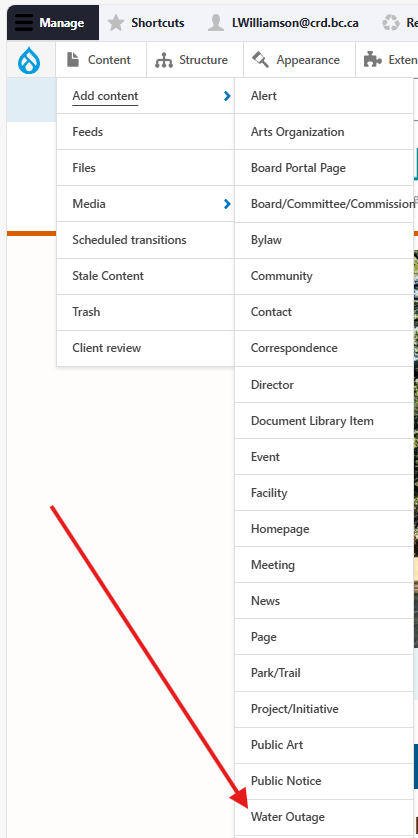
Input the following fields:
- Title: A short label for naming the water outage, e.g., "Unplanned outage on Cooper Road"
- Cause: For specifying whether the water outage is planned or unplanned.
- Location: For marking the location of the water outage on a map, using the toolbar on the righthand side:
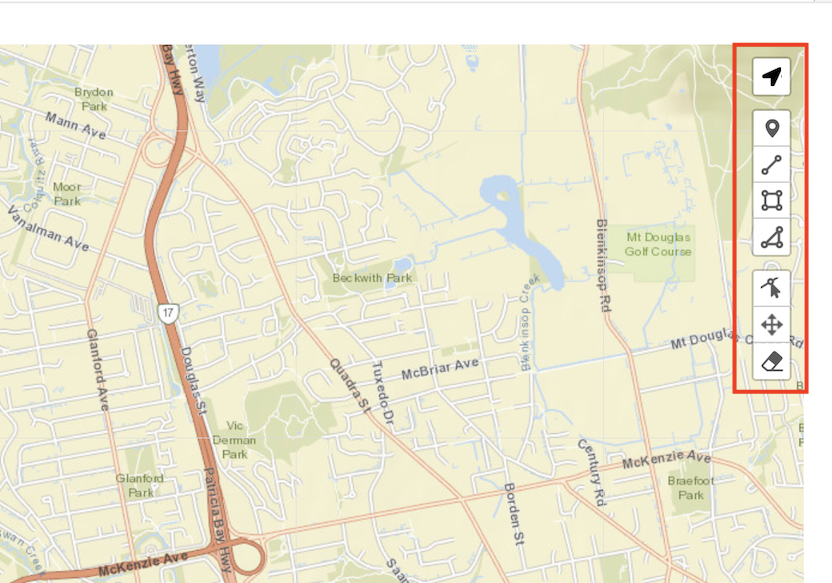
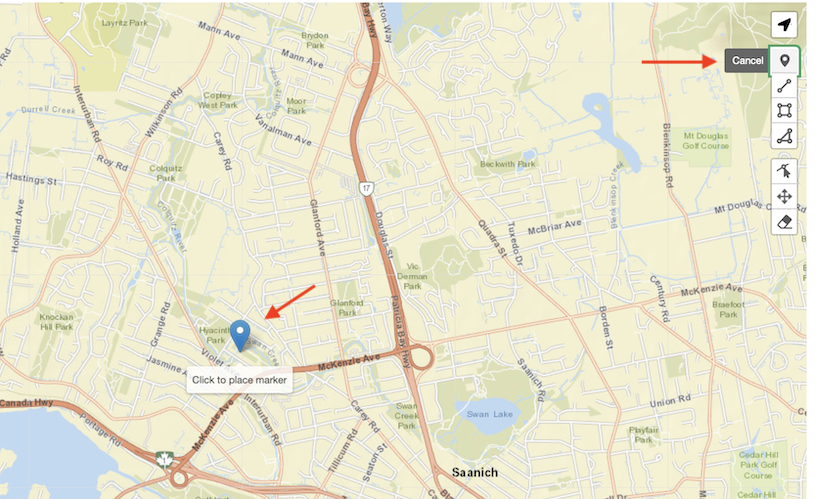
Click the first icon to place a single pin on the map. You can place more than one if required.
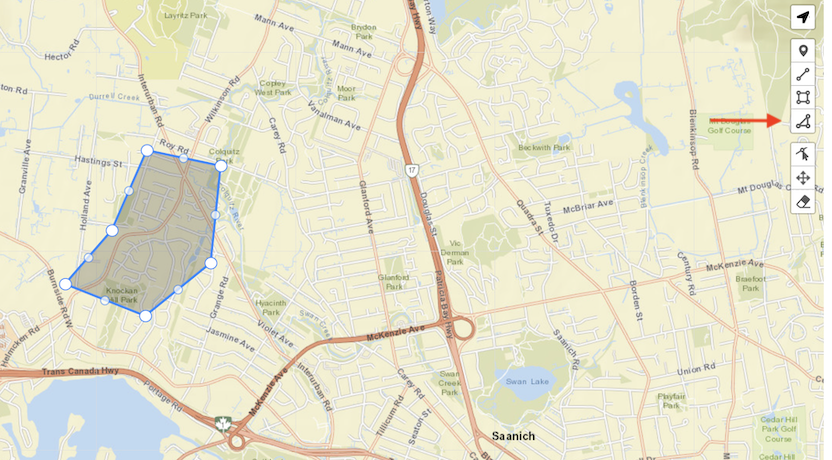
You can also draw a line, rectangle, or polygon by clicking one of the three icons below the pin.
Continue inputting the following fields:
- Outage status: For specifying the status of the water outage. If you are reporting a new outage, you will likely select 'Scheduled' or 'Active'.
- When 'Resolved' is selected, an additional Date Resolved field will appear.
- Homes impacted: For specifying the number of homes the water outage affects. This field is required.
- Water system impacted: For specifying which water system is impacted by the outage. This will affect who is notified if a subscription mailout is delivered. This field is required.
- Estimated start time: For inputting the estimated start time of the outage.
- Estimated restoration: Inputting a date and time in this field will uncheck the following No ETA checkbox.
- No ETA: For specifying when there is no estimated time of service restoration. This input is checked by default.
- Display in Global Alert Banner: For displaying the water outage site-wide.
- Comments: For additional context/information regarding the status of the outage. This field is required.
Editing a Water Outage
- To edit a specific node, click on Content in the Drupal toolbar.
- Filter by the Water Outage content type.
- Click to edit the specific node. Make your desired edits.
- Make sure that Published is selected in the dropdown menu, and click Save.
Content lifecycle
Water Outage nodes that are planned (using the Cause field) will only publish 72 hours before the planned outage start time. Unplanned outages will be published immediately.
Nodes will be unpublished automatically 14 days after the Outage status field is set to 'Resolved'.
Integrations
Constant Contact
Send a Mailout to Water System Subscribers
You can send a mailout to the related Water System subscribers from the water outage content to provide updates.
- From the Admin toolbar, select Content
- Find or use the filters to a Water Outage content
- Edit the Water Outage content
- Update relevant Water Outage information
- At the bottom check the Send mailout to impacted Water System subscribers now
- Save the page as published
- Click Save button

Click here for more details on the Constant Contact integration.