Adding News
Once logged in, go to the the Drupal Admin toolbar and navigate to Content > Add content > News.
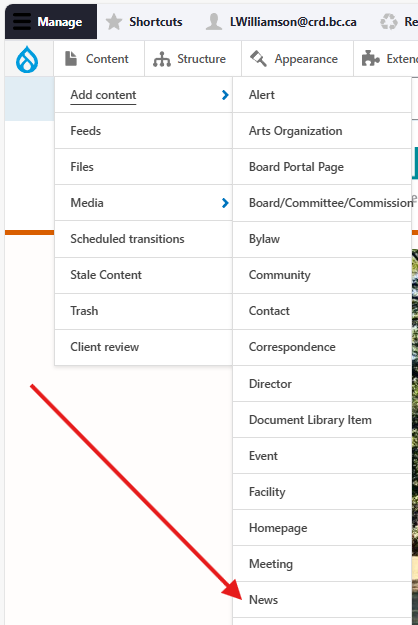
Input the following fields:
- Title: For the title of the News item. This field is required.
- Summary: For providing a short summary of the news item. This is optional but will display on the front-end of the main news directory.
- Description: For the full content of the news item.
Clicking the News information tab will display the following additional fields:
- Date: For the news item's publication date.
- Type(s): For specifying the type of news item. Users will be able to filter the news directory by this field. You can select multiple options if applicable.
- Category: For specifying the news item's category/topic. This will only be visible on the detail view of an individual node, and not in the main directory.
- Community: This input will display the news item on the relevant community's Community node.
- Image: For uploading a related image to the news item. Use JPG images. Should be 880x495px (16:9).
Once you have filled out the above fields, make sure that Published is selected in the dropdown menu next to Save as, and click Save.
Under Related content you have the option to select Pinned on Homepage "News from the CRD" view to feature the news item under the homepage news view.
Editing News
- To edit a specific node, click on Content in the Drupal toolbar.
- Filter by the News content type.
- Click to edit the specific node. Make your desired edits.
- Make sure that Published is selected in the dropdown menu, and click Save.
Content sharing
News content types can be displayed on an associated Community content type node by using the Community field, if desired. See the Community content type page for additional information.
Content lifecycle
News content type nodes will be unpublished automatically five years after the publication date has passed.
Editorial guidelines
For instructions on when to use the News content type and how to write this type of content, see the UX style guide.
Integrations
Constant Contact
Subscribe to News
You can send a mailout to News subscribers when either creating or editing a News content type.
- From the Admin toolbar, select Content > Add Content > News.
- Or, click on Content in the Drupal toolbar.
- Filter by the News content type.
- Click to edit the specific node.
- Add/update the node.
- Check the Send mailout to subscribers now field (pictured).
- Make sure the Save as field is set to 'Published'.
- Click Save.