Document Accessibility
Before you upload a document, check for common accessibility issues. This makes it easier for content to be found on our website or via Google search while also making it easier for people using accessibility tools such as a screen reader or navigation via keyboard.
Check out the video tutorial and our tip sheet to learn about basic accessibility settings such as:
- Document name / title
- Document tagging
- Proper structure (H1, H2, paragraph, etc.)
- Alt text for images
Additional resources:
Adding a New Document
To add a new document, highlight the text you want to link to a PDF, click the "Link" button (🔗) in your WYSIWYG toolbar, and click the "Media Library" button. From here you can either upload a new PDF or choose one that's already been uploaded into your media library. Using the "Search" function to type in the name of the file can help you quickly find PDFs that already exist in your media library.
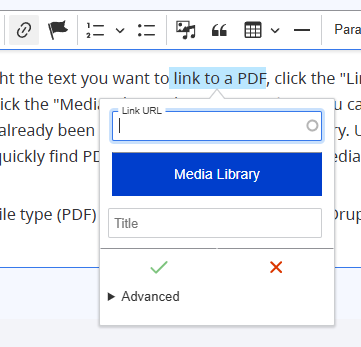
You do not need to add the file type (PDF) and size to the media link. Drupal will add that automatically.
Replacing a Document
This process is also outlined in a tip-sheet on SharePoint.
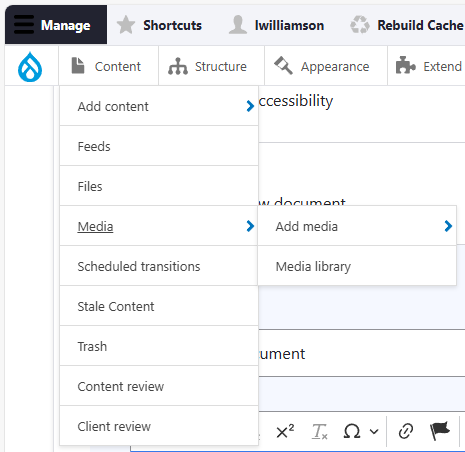
- Navigate to the media library.
2. Filter your search to only include "Files".
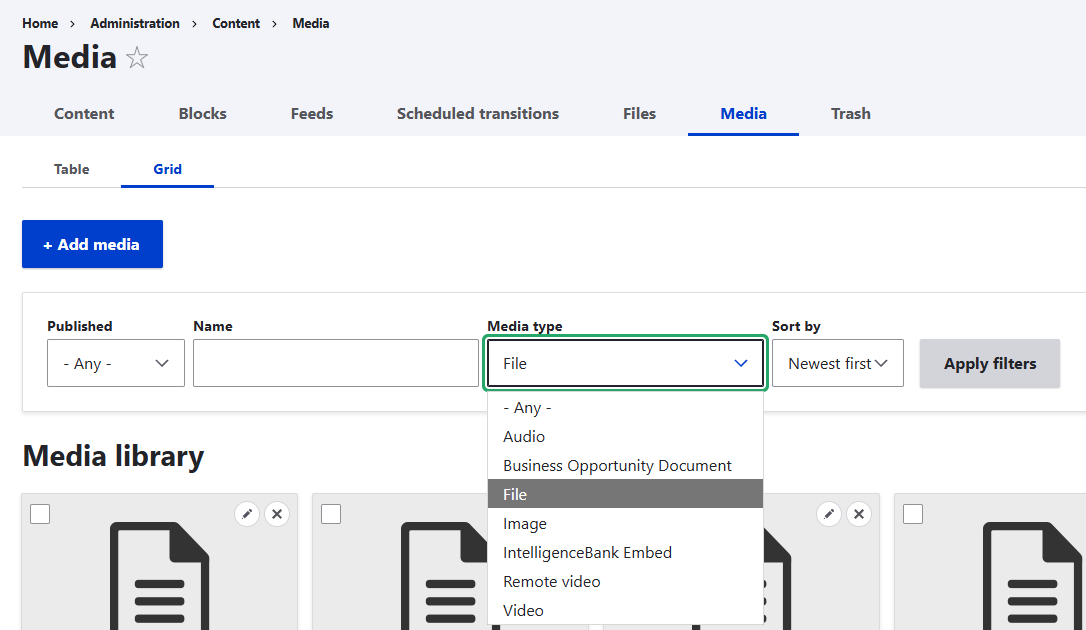
3. Find the file you wish to replace using the search bar.

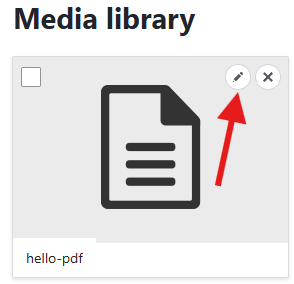
4. Click the pencil icon to edit the file entry.
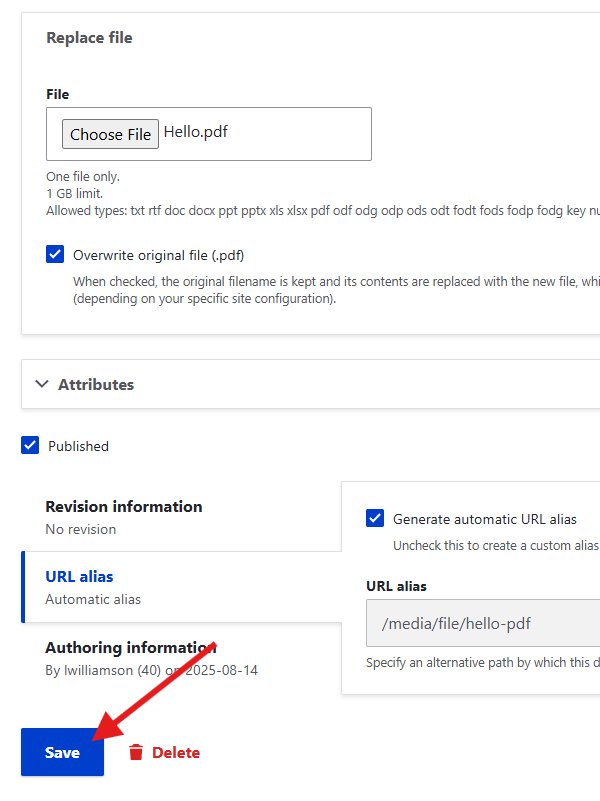
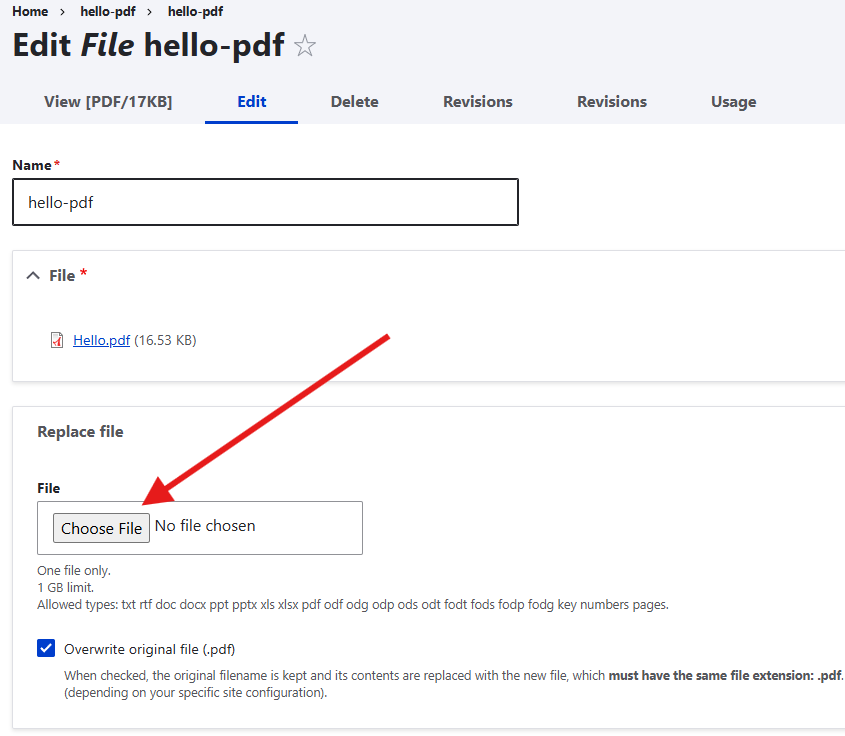
5. Either click the "Choose new file button" or drag & drop the file onto the button.
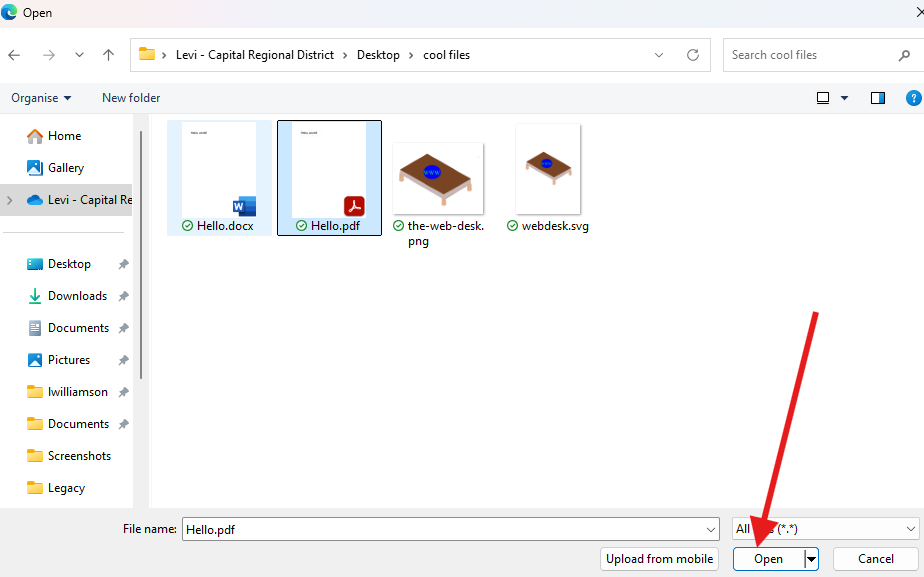
7. Select and upload the file.
8. Save your changes to the media library item by clicking the "Save" button.