The CRD utilizes a Digital Asset Management (DAM) from IntelligenceBank (IB) and is integrated and configured with Drupal's Media Library using the IntelligenceBank DAM Connector module. The DAM is located at https://brandhub.crd.bc.ca where CRD users uploads their digital assets that are to be used on the Drupal site, or other applications where needed. An account is necessary to be used to login and access the assets in the IB DAM in order to be embedded.
This integration allows content editors to embed assets, mainly images, from the IB DAM into the WYSIWYG or media image fields on any content that it is configured.
Use IB DAM images in the WYSIWYG
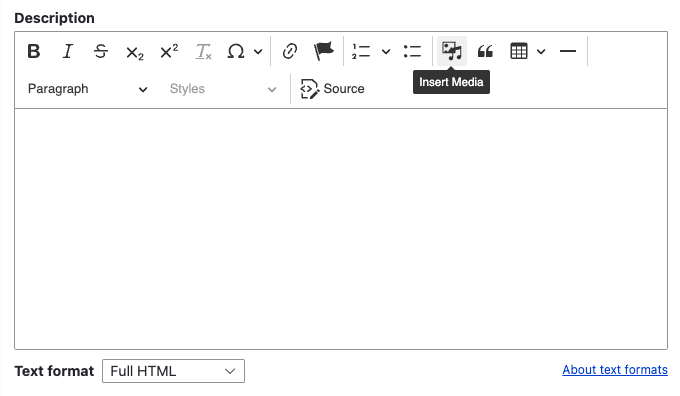
While editing content, you'll come across a WYSIWYG. One of its features is to allow the editor to embed images from Drupal's media library, including assets from the IB DAM.
To embed an image from the IB DAM follow these steps:
- Click the insert media button on the WYSIWYG toolbar
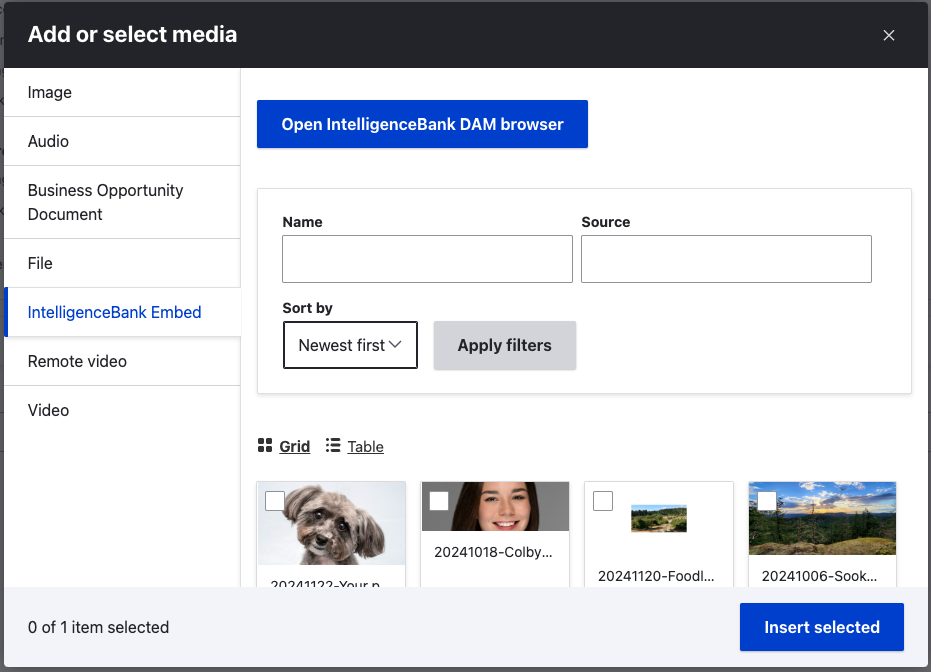
- The Add or select media dialog will open
- On the side bar menu, select the IntelligenceBank Embed
- List of recently linked images from IB DAM are displayed
- At the top, click the Open IntelligenceBank DAM browser
- Login to IntelligenceBank, if prompted.
- Navigate through the subfolders and find the image to be added
- From the dropdown, select the pre-determined image size/ratio for the site
- To insert the image as a CDN link, click the link icon
- Clicking the download button will transfer the image from the IB DAM into Drupal's media library
- After clicking the link icon, the screen will display settings information that includes the pre-filled title, alternative text and remote URL.
- Click select and it will appear in the list of recently linked images
- Click insert selected
Use IB DAM Images in Image Fields
All image fields in Drupal for content and paragraph types are configured to add or select images from Drupal media library and from IntelligenceBank DAM.
To select an image from the IB DAM follow these steps:
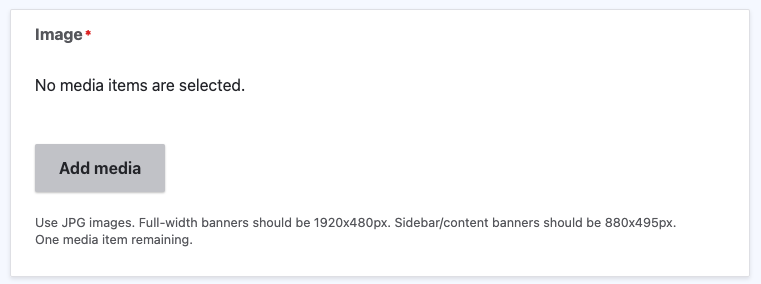
- Edit a page with an image field
- Click the Add Media button for the image fields
- If there is an existing image, click on the pencil icon to edit
- On the side bar menu, select the IntelligenceBank Embed
- List of recently linked images from IB DAM are displayed
- At the top, click the Open IntelligenceBank DAM browser
- Login to IntelligenceBank, if prompted.
- Navigate through the subfolders and find the image to be added
- From the dropdown, select the pre-determined image size/ratio for the site
- To insert the image as a CDN link, click the link icon
- Clicking the download button will transfer the image from the IB DAM into Drupal's media library
- After clicking the link icon, the screen will display settings information that includes the pre-filled title, alternative text and remote URL.
- Click select and it will appear in the list of recently linked images
- Click insert selected
- Save page
Managing IB DAM Images in Drupal
All Drupal images and images from the IntelligenceBank DAM are all stored in Drupal's Media Library (/admin/content/media-grid). In the Media Library, you can add, edit or delete images.
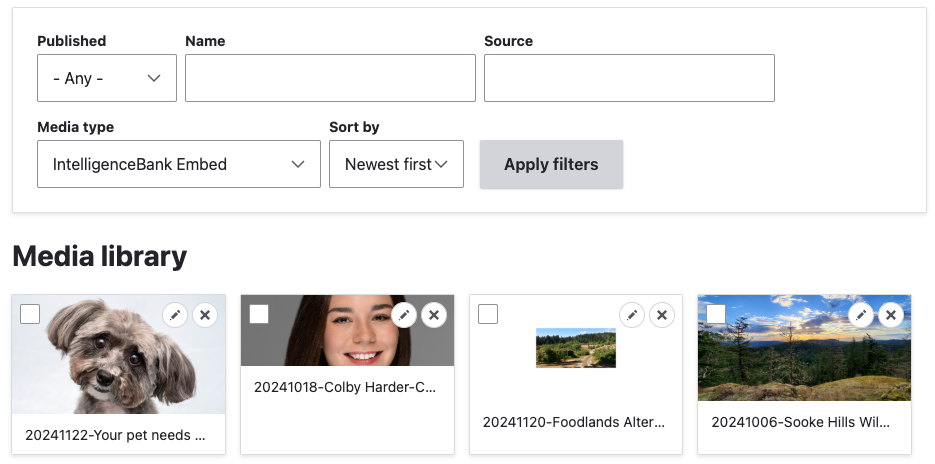
Particularly for the IntelligenceBank images, it is best to add the images from the IB DAM using either the WYSIWYG or image fields.
Editing IB DAM images from library is best used to update the image's title or alternate text. Note that these title or alternate text values does not synchronize with the IB DAM when edited.
IB DAM images can also be deleted from the Media Library, however, this will only be in Drupal and will continue to exist in the IB DAM. To delete the image from IB DAM, login to the IB DAM directly and delete the image.