Webdesk Tasks
The following tasks require advanced permissions and are for Webdesk reference only.
Taxonomy terms in Drupal are used to classify and organize content. They allow internal staff to group related content together, making it easier for users to find and navigate the site. These terms usually get applied to various content types across the CRD's websites.
Getting started
- Log in to your Drupal site as an administrator.
- Click on Structure in the main menu.
- Click on Taxonomy to create a new taxonomy vocabulary.
- Click Add vocabulary and give your vocabulary a name.
Adding and using terms
Add terms to your vocabulary. For example, if you are creating a vocabulary for recipes, you might add category terms like "appetizers", "entrees", and "desserts". Once you have created your vocabulary and terms, you can add them to your content types.
For example, if you have a content type for recipes, you might add a "recipe category" field that allows the user to select which category the recipe belongs to.
When creating or editing content using the various content types, the user can then select the appropriate taxonomy term from the list. This will classify the content and make it easier for users to find related content on your site.
Taxonomy terms can also help dictate where on your site certain types of content will live. For example, a News content type that is tagged as a "Media Release" might then show up on a separate page from News content types that are categorized as "Public Notice."
Managing taxonomy terms that have an associated icon
Some taxonomy vocabularies have an icon associated with each term. This icon displays on the front end along with the term itself.
The following vocabularies include an input for an icon:
- Park amenities (CRD site only)
- Park activities (CRD site only)
- Property amenities (CRHC site only)
To edit the icon that appears along with an applicable taxonomy term:
- Click Structure > Taxonomy.
- Find the vocabulary you want to edit and click List terms under the Operations column on the right-hand side.
- Click Edit on the term you want to edit.
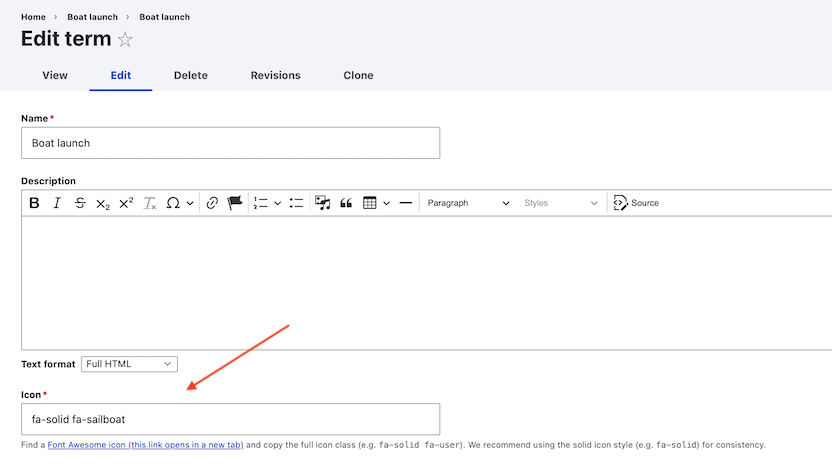
- If the vocabulary term has the option of including an icon, an Icon field will be visible under the Name and Description fields (pictured). Find a Font Awesome icon and copy the class into the text box.
- Click Save.