Logging in (first time)
The first time you access one of the CRD websites you will need to authenticate through Azure/Entra.
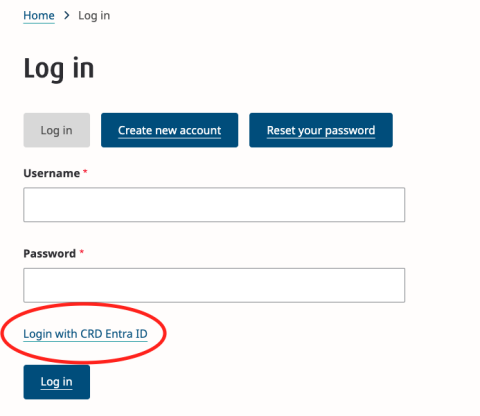
You will then be granted access to the back end of the website without a specific role applied to your user. After you have authenticated the first time a CRD administrator can assign you your role. Once that has been done you can refresh your screen and you will see the CMS toolbar and have access to everything included with your assigned role.
Webdesk Tasks
The following tasks require advanced permissions and are for Webdesk reference only.
How to add a user
- Log in to your Drupal site as an administrator.
- Click on the "People" link in the Drupal Admin menu near the top of your browser.
- You will see a list of people who have authenticated, but do not yet have roles assigned.
- Click the "Edit" button next to the user you wish to assign a role for.
- Use the checkbox(es) provided to assign the appropriate role(s). Note that more than one role can be assigned to a user.
- Click "Save".
Note: Filling out the user's information in the form including edits to username, email address, and password for the user will not take effect as these details are passed directly to Drupal from Azure/Entra. All password and user detail management must happen in CRD's Azure/Entra environment.
Defining user roles
Choose the user's role from the "Roles" field. Roles define the permissions and access levels that the user will have on the site. For example, you can assign the user to the "Content Publisher" role to give them permission to edit content on the site.
Setting the user status
You can also change the status for a user as either "Active" or "Blocked." Drupal will default to "Active" to ensure the user has access to the site. If a user's status is set to "Blocked", they will not be able to log into the site.
Available roles
The following roles are available:
- Administrator - Should be assigned selectively and sparingly. Provides the user with complete access to the website including areas that could 'break' the website on the front end.
- Access roles - designed to provide users specific technical access to areas of the site as needed. Typically assigned along with another role (i.e. Content Publisher with Access - Raw HTML).
- Access - Blocks
- Access - Cache Rebuild
- Access - Files
- Access - Raw HTML
- Access - Security
- Access - Taxonomies
- Access - Users
- Access - Webforms
- Business Opportunity Admin - specific to the Business Opportunity content type.
- Business Opportunity User - public users for the Business Opportunity content type.
- Content - Admin - Can access all content areas of the website including the homepage, webforms, menus and taxonomies.
- Content - Publisher - Can create, edit and publish all content but has restricted access to other areas such as menus, taxonomies and webforms.
- Content - Editor - Can create and edit all content, but cannot publish. Must send content edits to a publisher or Admin for publishing.
- Content - Viewer - Can view all content including drafted content.
- Editor - Department specific roles that allow users to edit pages tagged with the specific department only. Requires a publisher to publish changes.
- Editor - First Nations
- Editor - Animal Care
- Editor - Arts
- Editor - Building Inspection
- Editor - Bylaw Services
- Editor - Climate
- Editor - Contact
- Editor - Document Library
- Editor - Events
- Editor - Environmental Protection
- Editor - Health
- Editor - Housing
- Editor - Integrated Water
- Editor - JdF
- Editor - Legislative
- Editor - News Release
- Editor - Park Trail
- Editor - Projects
- Editor - Protective Services
- Editor - Regional Parks
- Editor - Regional Planning
- Editor - Salt Spring
- Editor - Waste
- Group - these roles are for Upanup's use and management of the website.
- Group - Client
- Group - Upanup
- Group - Approved Contact
- Publisher - Content type specific roles - these are roles that allow users to create, edit and publish a specific content type only.
- Publisher - Alert Notice
- Publisher - Business Opportunity
- Publisher - Facilities
- Publisher - Meeting
- Publisher - Public Notice
- Vendor - Related to the configuration with Login Radius, not to be assigned to CRD users.
- Water Outage Admin - Specific role for users who need to administer water outages.
- Water Outage User - Specific role for users to need to create and manage water outages.