
Webdesk Tasks
The following tasks require advanced permissions and are for Webdesk reference only.
Building a webform
Learn how to build a webform and the element options available.
Conditional formatting
Learn how to make certain webform elements to appear depending on specific conditions.
Webform settings
Webforms have a variety of settings, learn how to adjust the most common ones.
Navigating the webform section
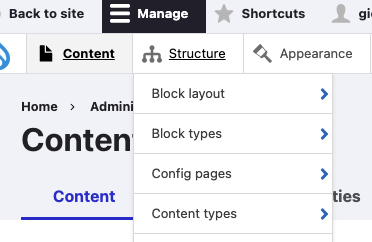
To access the webform section of the CMS, make sure you're logged into your account, and click Webforms under the Structure menu (you may need to scroll down).
Image
Adding, editing & deleting webforms
- Adding a Webform: to create a new webform, click the Add webform button.
- Editing a Webform: to edit an existing webform, find the webform you'd like to edit and click the Build option
Image

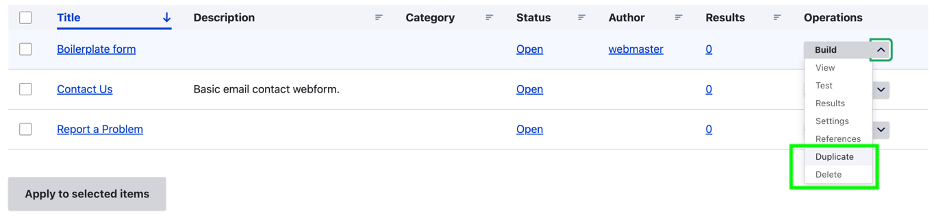
3. Deleting or Duplicating a Webform: to delete a webform, use the Operations drop down menu to select delete or duplicate.
Image
Viewing submissions for existing webforms
To view the submissions to date for an existing webform, click the number under the results column:
Image
