Adding a Park/Trail
Once logged in, from the Drupal admin toolbar, click Content > Add content > Park/Trail.
Image
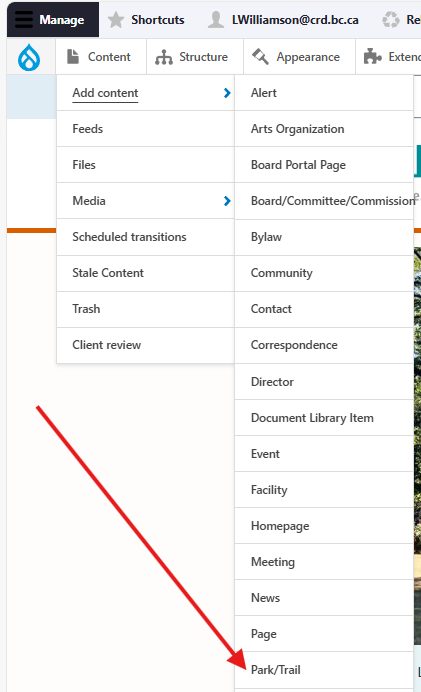
Input the following fields:
- Title: For the park/trail's name.
- Description: For additional information about the park/trail not already covered by the additional fields under the Park/trail information tab, e.g., a short description of the park/trail.
Next, click the Park/Trail information tab to access the following fields and sub-tabs:
- Park type: For specifying if the park is a community park, regional park, or regional trail.
- Park rating: For specifying a hiking trail's difficulty. Note: this field's front-end display label is "Difficulty rating".
- Community: For linking the park/trail to a specific community. This will display in the node's detail view. Users can also filter the park/trail directory by this input.
- Amenities and activities tab:
- Park amenities: For selecting which amenities are available at the specific park/trail. You may select more than one. Users can filter the main directory by these inputs.
- Park activities: For selecting which activities are offered at the specific park/trail. You may select more than one. Users can filter the main directory by these inputs.
- Image Gallery tab - this set of fields allows you add multiple images that will display in a carousel on the front end:
- Image: For uploading an image via the media library. See the Intelligence Bank page for instructions how to use the Digital Asset Manager to upload images.
- Caption: For a brief caption to accompany the image.
- Click Add Image to add an additional image to the gallery.
- Use JPG images with a ratio of 16:9, max width of 880px.
- Map and directions tab - the following fields display on the front end under the heading "How to Get There":
- Location: For inputting the latitude and longitude of the park/trail. This will place a marker on a map, displayed on the node's detail view. Input the street address into this LatLong tool to find the needed values.
- Directions: For short instructions on how to access the park/trail.
Finally, click the Related content tab to access the following field:
- Related contact: For displaying a specific contact's information in the page sidebar. See the Contact content type page for more information.
Editing a Park/Trail
- To edit a specific node, click on Content in the Drupal toolbar.
- Filter by the Park/Trail content type.
- Click to edit the specific node. Make your desired edits.
- Make sure that Published is selected in the dropdown menu, and click Save.
Content lifecycle
There are no scheduled transitions in place for this content type. Content should be reviewed at least once per year to ensure its accuracy.
Editorial guidelines
For instructions on when to use the Park/Trail content type and how to write this type of content, see the UX style guide.