Adding a New Page
Once logged in, from the Drupal admin toolbar, click Content > Add Content > Page.
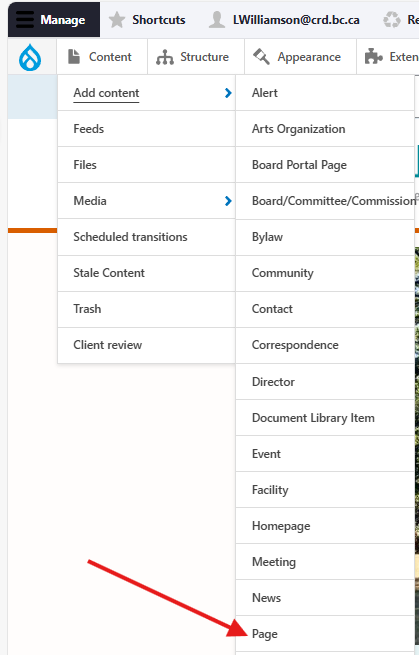
Input the following fields:
- Title: For the page's title. This will also be the page's menu link text, unless you choose to edit the link manually.
- Banner: Optional banner image with three placement variations.
- Full width: should be 1920x480px (4:1). Displays a banner across the top of the page.
- Content: should be 832x468px (16:9). Displays a banner within the content area of the page.
- Sidebar: should be 832x468px (16:9). Displays a banner in the left hand menu.
- Description: For the main content of the page. If you are not using any additional content rows, this field is flexible enough for most content.
Click the Related content tab to access the following fields:
- Related contact: For displaying a specific contact's information in the page sidebar. See the Contact content type page for more information.
- Community: For assigning a page to a specific community. This will create a link to the page on the corresponding Community content type node. See the Community content type page for more details.
In addition to these fields, the full selection of content rows are available for creating content.
Editing a Page
- To edit a specific node, click on Content in the Drupal toolbar.
- Filter by the Page content type.
- Click to edit the specific node. Make your desired edits.
- Make sure that Published is selected in the dropdown menu, and click Save.
Content sharing
The following three pages are shared from the main site to each sub-site via the feed importer:
- Accessibility
- Disclaimer
- Privacy
The main Description field, i.e., the text editor outside of the content rows paragraph field, and the Hide Page Feedback/Hide Territorial Acknowledgment checkbox values are all shared to each sub-site.
When each page's Description field is updated on the main site, the corresponding subsite page's field will be updated on a subsequent feed run. This feed is run daily.
Values can be input into other fields on corresponding pages on a per-site basis, such as menu settings and additional content rows. These fields will not be affected or deleted on subsequent feed runs.
When the Share this page across all sites checkbox field is selected, it adds that page to the sharing feed. This field is only accessible to users with full administrator privileges.

If a page is shared from the main site, this will automatically check a Shared page from main site field in the management settings of the corresponding sub-site page.
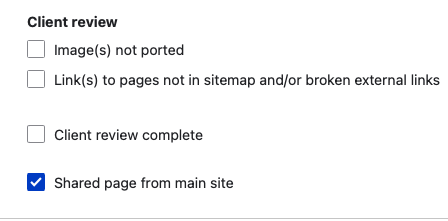
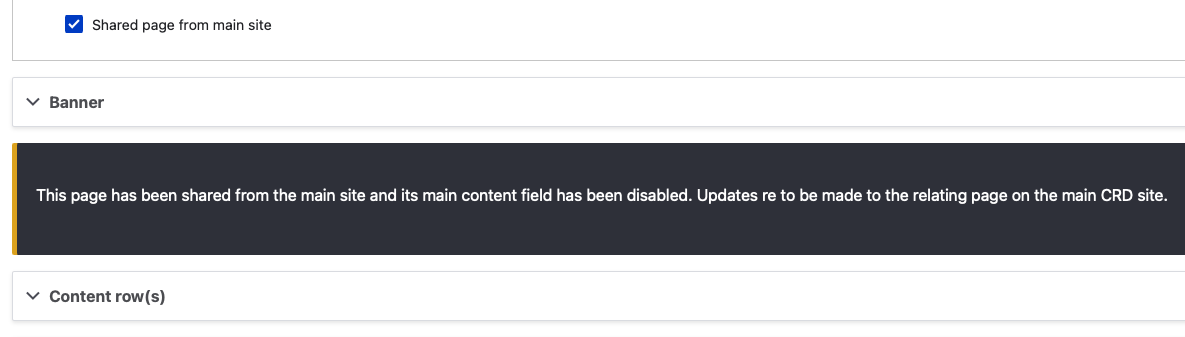
When this field is checked (done automatically by the feed importer), the Description field will be removed and replaced with a markup field communicating that the page was shared from the main site. This prevents users from updating content for shared pages on sub-site's node.
Content lifecycle
There are no scheduled transitions in place for this content type. Content should be reviewed at least once per year to ensure its accuracy.
Editorial guidelines
For instructions on when to use the Page content type and how to write this type of content, see the UX style guide.