Adding a Facility
Once logged in, go to the the Drupal Admin toolbar and navigate to Content > Add content > Facility.
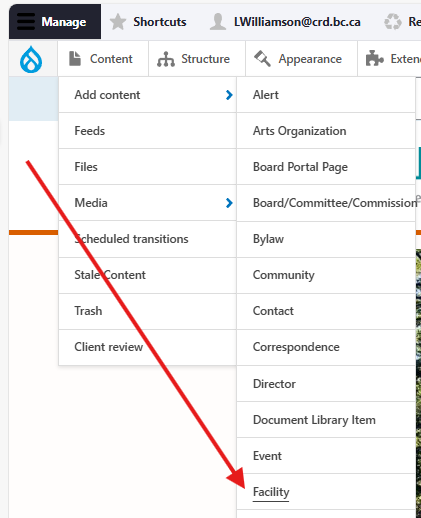
Input the following fields:
- Title: For the name of the facility. This field is required.
- Description: For providing a short summary of the facility. This is optional.
Clicking the Facility information tab will display the following additional fields:
- Facility type: For content-sharing between sites. This will not display on the front-end.
- Address: For the facility's street address.
- Location: The facility's latitude and longitude. This is for displaying the node on a map.
- Input the street address into this LatLong tool to find the needed values. Webdesk can also provide facility coordinates.
- Facility hours: For listing the facility's hours, e.g., "Monday to Thursday, 5–10 p.m.".
- Current status: For specifying the facility's current status. This will display in the shared directory of all facilities on the Locations & Hours page of the main corporate site.
- Status notes: For any additional clarification/context regarding the facility's current status, e.g., "this facility is closed because there are ongoing renovations".
Once you have filled out the above fields, make sure that Published is selected in the dropdown menu, and click Save.
Editing a Facility
- To edit a specific node, click on Content in the Drupal toolbar.
- Filter by the Facility content type.
- Click to edit the specific node. Make your desired edits.
- Make sure that Published is selected in the dropdown menu, and click Save.
Content sharing
Project/Initiative content type nodes that are created on the Capital Region Housing Corporation (CRHC) site can be shared to the corporate site by checking the Share with the corporate site field under the Advanced settings tab:
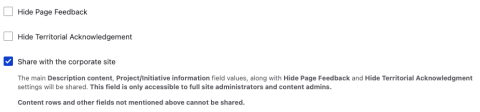
Checking this field will add the node to a feed that runs daily. This field is only accessible to full site administrators and content admins.
When a node is added to the feed, the following fields will be synced:
- Description
- Project Type
- Project Category
- Project Status
- Project Area
- Location
- Estimated Cost
- Estimated Timeline
- Contracted To / Performed By
- Additional information links
- Hide Page Feedback
- Hide Territorial Acknowledgement
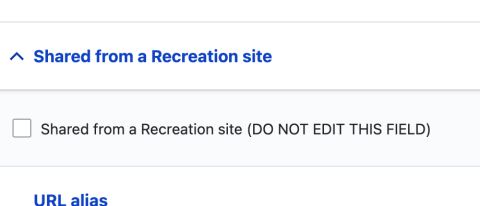
If a Project/Initiative node is shared from the Recreation site, this will automatically check a Shared form another site field in management settings of the corresponding node on the main site.
When this field is checked (done automatically by the feed importer), all fields that are part of the sharing feed will be removed and replaced with warning message communicating that the node is shared from another site. This prevents users from updating content on the shared node instead of the source node. Do not edit the "shared from a Recreation site" field for any reason.
Content lifecycle
There are no scheduled transitions in place for this content type. Content should be reviewed at least once per year to ensure its accuracy.
Editorial guidelines
For instructions on when and how to use the Facility content type, see the UX style guide.