Adding a Community
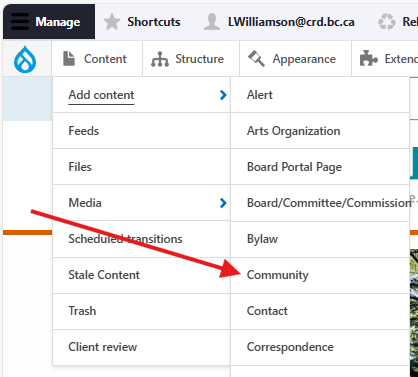
Once logged in, from the Drupal admin toolbar, click Content > Add Content > Community.
Input the following fields:
- Title: For the page's title. This will also be the page's menu link text, unless you choose to edit the link manually.
- Banner: An optional banner image.
- Description: For a short description/summary of the community, e.g., where it's located, its population, etc.
Click the Community Information tab to access the following fields:
- Community: Used to filter other content (News, Parks, etc.) that can appear on this Community node. This field is required.
- Note: this field refers to a taxonomy vocabulary that will need to be updated with a term matching the name of the community you are creating.
- Website: For an external link to the community's website, if it has one.
- CRD Services: For introductory content that will display in an accordion above a list of service pages that are tagged for this specific community.
- Projects and Initiatives: Fore content that will display above a list of Project/Initiative nodes that are tagged for this specific community
- Committees and Commissions: For introductory content that will display in an accordion above a list of Board/Committee/Commission content types that are tagged for this specific community.
- Additional Information: For any additional information not covered by the above fields.
Click the Related content tab to access the following fields:
- Related contact: For displaying a specific contact in the sidebar. See the Contact content type page for more information.
Editing a Community
- To edit a specific node, click on Content in the Drupal toolbar.
- Filter by the Community content type.
- Click to edit the specific node. Make your desired edits.
- Make sure that Published is selected in the dropdown menu, and click Save.
Displaying related content on a Community node
The Community content type is built so that other content associated with a specific community, e.g., a community's director, can be displayed in a list view on that node. This is done via the Community field of the content type you'd like to display.
For example, to display information about a specific director on the community node for Sooke, you would select 'Sooke' on the Community field of the Director content type:
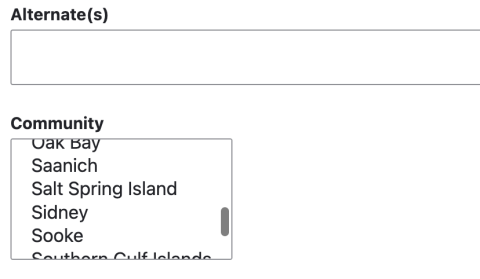
This creates a relationship between the Community node and the associated content, and allows you to create views of other content types tagged with the same term.
The following content types can be displayed on a Community node:
- Board/Committee/Commission
- Director
- Events
- News
- Page
- Public Notice
- Project/Initiative
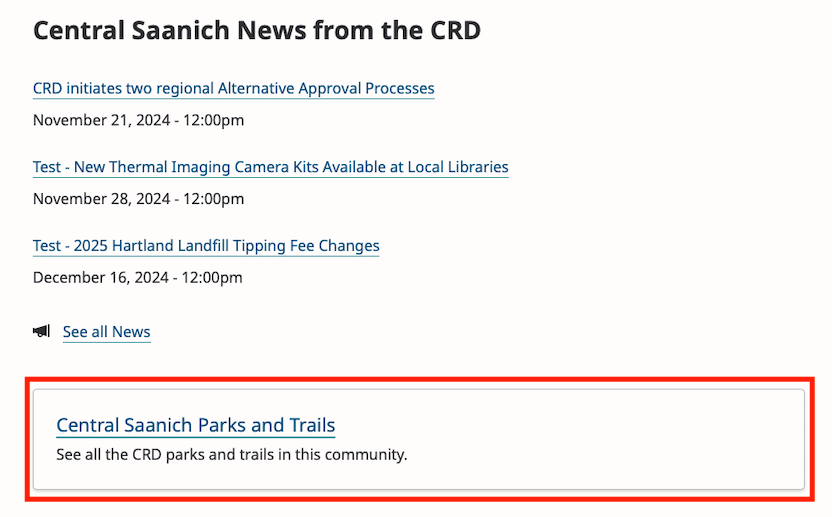
As well, the Community content type includes a link to the Park/Trail content type directory, pre-filtered to only show those labelled for the respective community. This link appears below the News listing:
Editorial guidelines
For instructions on when to use the Community content type and how to write this type of content, see the UX style guide.
Integrations
Constant Contact
Auto-create Contact List
Each Community content has a corresponding contact list in Constant Contact. This contact list is automatically created when a new Community is created.